Implement JWT Based User Authentication in a MERN Stack App - Part 3
By Hemanta Sundaray on 2021-05-22
This blog post is part of a series. You must finish part-1 & part-2 before continuing here.
Install Bootstrap
We will start working at the frontend. We will use Bootstrap for styling. So, let’s install it.
PS C:\Users\Delhivery\Desktop\mern-auth\client> npm i bootstrapImport Bootstrap CSS above index.css import in the src/index.js file.
import React from "react";
import ReactDOM from "react-dom";
import "bootstrap/dist/css/bootstrap.min.css";
import "./index.css";
import App from "./App";
import reportWebVitals from "./reportWebVitals";

ReactDOM.render(
  <React.StrictMode>
    <App />
  </React.StrictMode>,
  document.getElementById("root")
);
Next, go to the index.css file, delete all the css rulesets and paste the following rules.
* {
  margin: 0;
  padding: 0;
  box-sizing: border-box;
}

html {
  font-size: 62.5%;
}
We will add all the CSS rules in index.css.
Create the header
Inside the src folder, create a folder named components and inside the components folder create a file named Header.js.
Paste the following code snippet inside Header.js.
import React from "react"

const Header = () => {
  return (
    <header>
      <nav>
        <ul className="navbar-list">
          <li className="navbar-list-item">Register/Login</li>
        </ul>
      </nav>
    </header>
  )
}

export default Header
Add the following css rules inside index.css.
* {
  margin: 0;
  padding: 0;
  box-sizing: border-box;
}

html {
  font-size: 62.5%;
}

header {
  width: 100%;
  height: 6rem;
  background-color: black;
  display: flex;
  align-items: center;
  justify-content: flex-end;
}

nav {
  height: 100%;
  margin-right: 3rem;
}

.navbar-list {
  list-style: none;
  position: relative;
  top: 50%;
  transform: translate(0, -50%);
}

.navbar-list-item {
  color: gainsboro;
  font-size: 1.6rem;
  cursor: pointer;
}
Now, we will import the Header component inside the App component.
import React from "react"
import Header from "./components/Header"

const App = () => {
  return (
    <>
      <Header />
    </>
  )
}

export default App
cd into the client folder and start the development server using npm start.
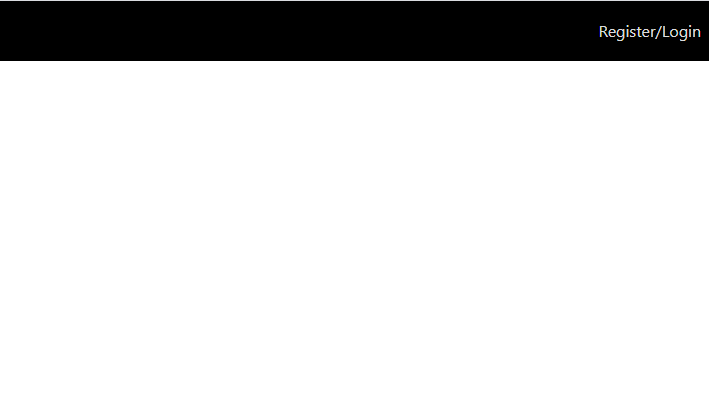
PS C:\Users\Delhivery\Desktop\mern-auth\client> npm startVisit http://localhost:3000/ and you should see the application.
Client-side routing
Ours is a single-page application. We will implement client-side routing using React Router which will render a certain component based on the route in the URL.
Since we are developing a web application, we will install react-router-dom.
PS C:\Users\Delhivery\Desktop\mern-auth\client> npm i react-router-domRouter
The first Router component we are going to work with from react-router-dom is called BrowserRouter. Its job is to keep the UI in sync with the URL.
In order to use BrowserRouter, we have to render it at the root of the element hierarchy. We can do so by wrapping the top level App component with the Router component as shown below:
import React from "react"
import ReactDOM from "react-dom"
import "bootstrap/dist/css/bootstrap.min.css"
import "./index.css"
import App from "./App"
import reportWebVitals from "./reportWebVitals"
import { BrowserRouter as Router } from "react-router-dom"

ReactDOM.render(
  <Router>
    <App />
  </Router>,
  document.getElementById("root")
)
Note:
BrowesrRouteruses the HTML5 history API (pushState,replaceState& thepopStateevent) to keep the UI in sync with the URL.
Navigation
Currently in Header.js, the text Register/Login is wrapped by li tags. We don’t want that. We want to create a link, so that when the user clicks on it, we will render a component that shows a login form. In order to do that, we will use the Link component from react-router-dom.
import React from "react"
import { Link } from "react-router-dom"

const Header = () => {
  return (
    <header>
      <nav>
        <ul className="navbar-list">
          <Link to="/login" className="navbar-list-item">
            Register/Login
          </Link>
        </ul>
      </nav>
    </header>
  )
}

export default Header
The to attribute in the Link component represents the route part of the URL.
We will notice that when we hover over Register/Login, the link is turned blue and is underlined with blue color as well.
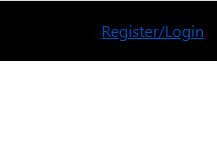
We will change the color to gray and remove the underline by adding the following CSS in index.css.
* {
  margin: 0;
  padding: 0;
  box-sizing: border-box;
}

html {
  font-size: 62.5%;
}

header {
  width: 100%;
  height: 6rem;
  background-color: black;
  display: flex;
  align-items: center;
  justify-content: flex-end;
}

nav {
  height: 100%;
  margin-right: 3rem;
}

.navbar-list {
  list-style: none;
  position: relative;
  top: 50%;
  transform: translate(0, -50%);
}

.navbar-list-item {
  color: gainsboro;
  font-size: 1.6rem;
  cursor: pointer;
}

.navbar-list-item:hover {
  text-decoration: none;
  color: gray;
}
Now, when we click on Register/Login our URL will change from localhost:3000 to localhost:3000/login. Next, we will render a login form in the path /login.
Go to part-4