Implement JWT Based User Authentication in a MERN Stack App - Part 4
By Hemanta Sundaray on 2021-05-22
This blog post is part of a series. You must finish part-1, part-2 & part-3 before continuing here.
The login form
In the components folder, create a file named LoginForm.js.
We will create a simple React form and style it using Bootstrap classes.
import React from "react"
import { Link } from "react-router-dom"

const LoginForm = () => {
  return (
    <div className="login-form-container">
      <div className="col-10 col-sm-8 col-md-5 mx-auto">
        <h1 className="font-weight-bold">Login</h1>
      </div>
      <form>
        <div className="form-group col-10 col-sm-8 col-md-5 mx-auto mt-5">
          <label htmlFor="email">Email Address</label>
          <input
            className="form-control form-control-lg"
            id="email"
            name="email"
            type="email"
          />
        </div>
        <div className="form-group col-10 col-sm-8 col-md-5 mx-auto">
          <label htmlFor="password">Password</label>
          <input
            className="form-control form-control-lg"
            id="password"
            name="password"
            type="password"
          />
        </div>

        <div className="col-10 col-sm-8 col-md-5 mx-auto">
          <button type="submit" className="btn btn-lg btn-primary btn-block">
            Login
          </button>
        </div>
        <div className="col-10 col-sm-8 col-md-5 mx-auto mt-3">
          <p>
            <Link to="/account/forgot" className="password-forgot">
              I forgot my password
            </Link>
          </p>
          <p className="register-cta">
            Don't have an account?{" "}
            <Link className="register" to="/register">
              Register
            </Link>
          </p>
        </div>
      </form>
    </div>
  )
}

export default LoginForm
Add the following css rulesets in index.css.
/*****************************/
/******* REGISTER & LOGIN*****/
/*****************************/

.login-form-container {
  margin-top: 5rem;
}

label {
  font-size: 1.5rem;
}

.register-cta {
  text-decoration: none;
  font-size: 1.5rem;
  font-weight: 600;
}

.register:hover {
  text-decoration: none;
}

/***********************************/
/*******END OF REGISTER & LOGIN*****/
/***********************************/

/**********************************/
/******* I FORGOT MY PASSWORD *****/
/**********************************/
.password-forgot {
  text-decoration: none;
  font-size: 1.5rem;
  font-weight: 600;
}

.password-forgot:hover {
  text-decoration: none;
}
/****************************************/
/******* END OF I FORGOT MY PASSWORD*****/
/****************************************/
Now that we have the LoginForm component, we need to render it when the route in the URL matches /login. We can do so by wrapping the LoginForm component with Route, which is a route matching component from react-router-dom.
import React from "react";
import Header from "./components/Header";
import { Route, Switch } from "react-router-dom";
import LoginForm from "./components/LoginForm";

const App = () => {
  return (
    <>
      <Header />
      <Switch>
        <Route path="/login" component={LoginForm} />
      </Switch>
    </>
  );
};

export default App;Note: The
Routecomponent automatically injectshistory,locationandmatchprops to the rendered component.
If you console.log the props object inside the LoginForm component, you will see an object like the following:
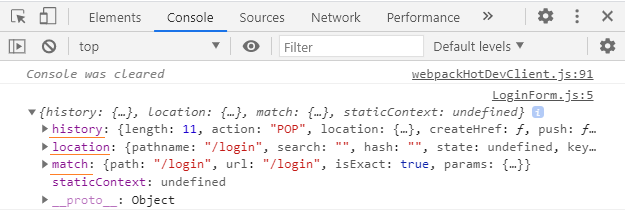
In the LoginForm component, you will notice that I have wrapped the Route component with the Switch component.
Why do we need a Switch component?
The Switch component is also a route matching component. It looks through all its children Route elements and renders the first one whose path matches the path in the URL.
Use a Switch anytime you have multiple routes but you want only one of them to render at a time. Right now, we have only one route - /login. However, we will add more routes as we progress further.
Now, when you click on the Register/Login link, the LoginForm component gets rendered on the screen and you should see a form like below:
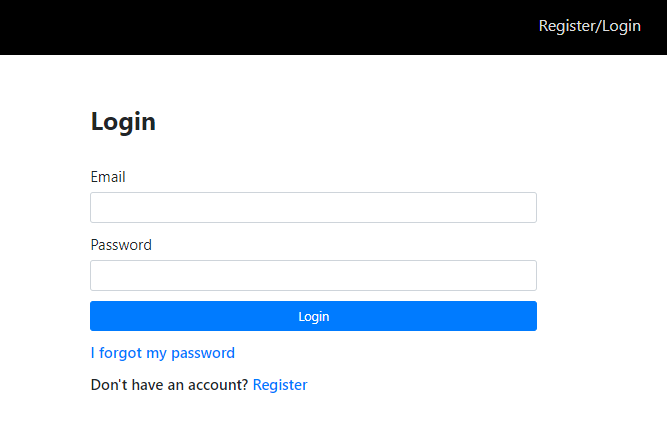
The login form does not do anything yet. Before we work on the functionalities, let's finish the registartion form.
The registration form
When we click on the Register link (at the bottom of the login form), we are taken to the URL localhost:3000/register. When the path matches /register, we want to show a registration form. We have not created a registration form yet. Let’s do that now.
Inside the components folder, create a file named RegisterForm.js.
Similar to how we created the login form, we will create a simple registration form first before adding the functionalities.
Place the following code inside RegisterForm.js,
import React from "react";

const RegisterForm = () => {
  return (
    <div className="register-form-container">
      <div className="col-10 col-sm-8 col-md-5 mx-auto">
        <h1 className="font-weight-bold">Register</h1>
      </div>

      <form>
        <div className="form-group col-10 col-sm-8 col-md-5 mx-auto mt-5">
          <label htmlFor="firstName">First Name</label>
          <input
            className="form-control form-control-lg"
            id="firstName"
            name="firstName"
            type="text"
          />
        </div>
        <div className="form-group col-10 col-sm-8 col-md-5 mx-auto">
          <label htmlFor="lastName">Last Name</label>
          <input
            className="form-control form-control-lg"
            id="lastName"
            name="lastName"
            type="text"
          />
        </div>
        <div className="form-group col-10 col-sm-8 col-md-5 mx-auto">
          <label htmlFor="email">Email</label>
          <input
            className="form-control form-control-lg"
            id="email"
            name="email"
            type="email"
          />
        </div>
        <div className="form-group col-10 col-sm-8 col-md-5 mx-auto">
          <label htmlFor="password">Password</label>
          <input
            className="form-control form-control-lg"
            id="password"
            name="password"
            type="password"
          />
        </div>
        <div className="col-10 col-sm-8 col-md-5 mx-auto">
          <button
            type="submit"
            className="btn btn-lg btn-primary btn-block register-button"
          >
            Register
          </button>
        </div>
      </form>
    </div>
  );
};

export default RegisterForm;
Add the following highlighted css rules in index.css.
/*****************************/
/******* REGISTER & LOGIN*****/
/*****************************/

.login-form-container {
  margin-top: 5rem;
}

.register-form-container {
  margin-top: 5rem;
}


label {
  font-size: 1.5rem;
}

.register-cta {
  text-decoration: none;
  font-size: 1.5rem;
  font-weight: 600;
}

.register:hover {
  text-decoration: none;
}

/***********************************/
/*******END OF REGISTER & LOGIN*****/
/***********************************/
Next, we will import and render the RegisterForm component inside the App component by wrapping it inside a Route component.
import React from "react";
import Header from "./components/Header";
import { Route, Switch } from "react-router-dom";
import LoginForm from "./components/LoginForm";
import RegisterForm from "./components/RegisterForm";

const App = () => {
  return (
    <>
      <Header />
      <Switch>
        <Route path="/register" component={RegisterForm} />
        <Route path="/login" component={LoginForm} />
      </Switch>
    </>
  );
};

export default App;
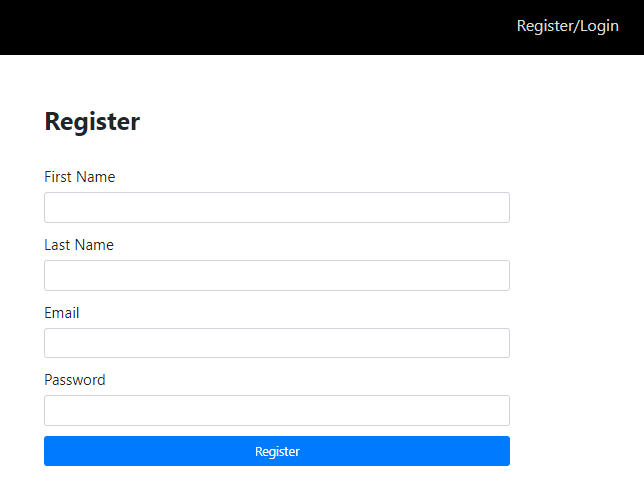
Now, when you click on the Register link (at the bottom of the login form), the URL changes to localhost:3000/register and the RegisterForm component gets rendered and we see a registration form.
Go to part-5