Implement Pagination, Search & Filter in a React App - Part 1 - Filter
By Hemanta Sundaray on 2021-06-23
We will learn how to implement pagination, search and filter in a React application by building an app from scratch.
First, let’s take a tour of the application that we are going to build.
On the home page, we display a list of blog posts.
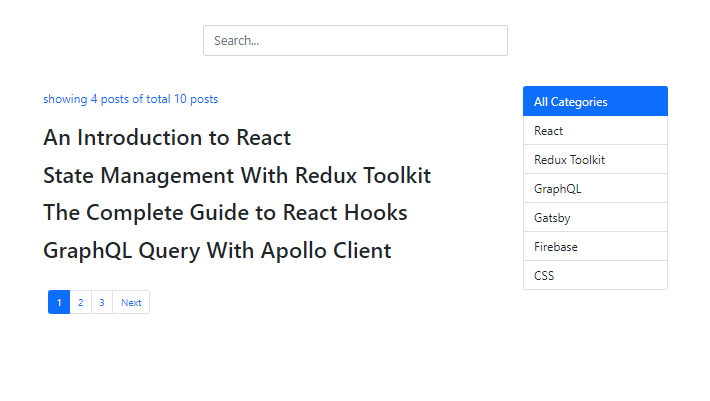
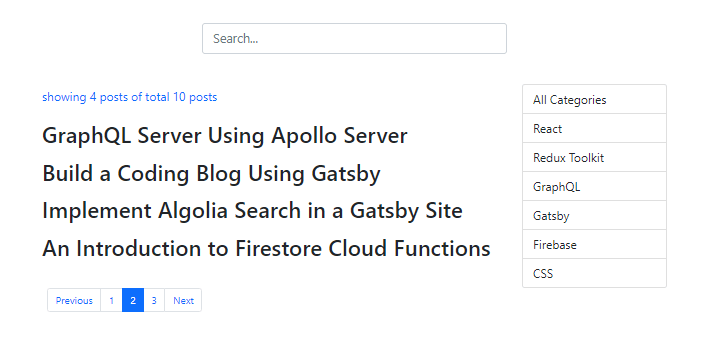
We can click on the Previous or Next links to go the previous or next page. We can also click on a page number to go to that specific page.
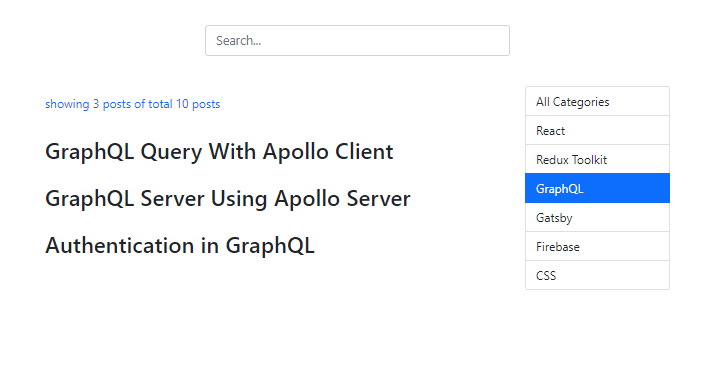
When we click on a category, blog posts that belong only to that category are displayed.
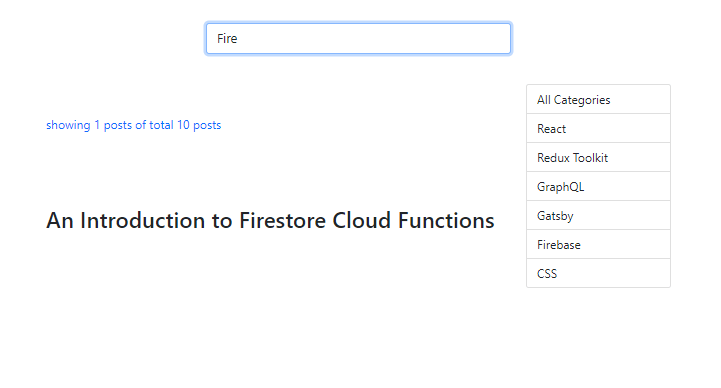
We can also search through the list of blog posts by their title. The search logic we will write will determine whether the titles of the blog posts contain the text that we type inside the search box and accordingly display the results.
Prerequisite
In order to follow this tutorial, you must understand the fundamentals of Redux Toolkit - a library we will use to manage the global state of our application.
Learn the essential concepts of Redux Toolkit in my blog post here.
Techstack
For styling, we will primarily use Bootstrap classes and components. We will also use a few utility functions from a JavaScript library called Lodash.
Ok, let’s get started.
Create a folder called blog, open the folder in VS Code and create a React project inside the folder using the following command:
PS D:\blog> npx create-react-app .We will install all the packages we need. Run the following command:
PS D:\blog> npm i @reduxjs/toolkit react-redux bootstrap lodashBefore we can use Bootstrap classes in our React components, we must import the Bootstrap minified CSS in our application’s entry point (index.js) above our index.css import.
import React from 'react';
import ReactDOM from 'react-dom';
import "bootstrap/dist/css/bootstrap.min.css";
import './index.css';
import App from './App';

ReactDOM.render(
  <React.StrictMode>
    <App />
  </React.StrictMode>,
  document.getElementById('root')
);
Next, we will set up our Redux store.
Inside the src folder, create a folder called components, and inside the components folder, create a file called blog-state.js and add the following code snippet.
import { createSlice } from "@reduxjs/toolkit";

const initialState = {
  posts: [
    { id: 1, title: "An Introduction to React", category: "React" },
    {
      id: 2,
      title: "State Management With Redux Toolkit",
      category: "Redux Toolkit",
    },
    {
      id: 3,
      title: "The Complete Guide to React Hooks",
      category: "React",
    },
    {
      id: 4,
      title: "GraphQL Query With Apollo Client",
      category: "GraphQL",
    },
    {
      id: 5,
      title: "GraphQL Server Using Apollo Server",
      category: "GraphQL",
    },
    {
      id: 6,
      title: "Build a Coding Blog Using Gatsby",
      category: "Gatsby",
    },
    {
      id: 7,
      title: "Implement Algolia Search in a Gatsby Site",
      category: "Gatsby",
    },
    {
      id: 8,
      title: "An Introduction to Firestore Cloud Functions",
      category: "Firebase",
    },
    {
      id: 9,
      title: "Authentication in GraphQL",
      category: "GraphQL",
    },
    {
      id: 10,
      title: "A Complete Guide to Layout Using CSS Grid",
      category: "CSS",
    },
  ]
};

export const blogSlice = createSlice({
  name: "blog",
  initialState,
  reducers: {},
});

export default blogSlice.reducer;
Above, we have hard-coded a list of blog posts. In the real world however, we would most likely fetch our blog posts by making HTTP requests to an API endpoint.
We will map through the list of blog posts and display them in our Posts.js component (which we have not created yet).
Next, we will import the blogSlice reducer in the store.js file.
In the src folder, create a file called store.js with the following code snippets.
import { configureStore } from "@reduxjs/toolkit";
import blogSliceReducer from "../src/components/blog-state";

export const store = configureStore({
  reducer: {
    blog: blogSliceReducer,
  },
});
Here, we are essentially saying that blogSliceReducer will be responsible for managing the blog slice of our global state.
Next, we will make the Redux store available to all our React components by wrapping the root component (App.js) with the Provider component from react-redux.
import React from 'react';
import ReactDOM from 'react-dom';
import "bootstrap/dist/css/bootstrap.min.css";
import './index.css';
import App from './App';
import { Provider } from "react-redux";
import { store } from "./store";

ReactDOM.render(
  <Provider store={store}>
    <App />
  </Provider>,
  document.getElementById('root')
);
Redux store set up is complete.
Now, we will create a Posts.js component, from where we will access the posts array in the Redux store by using the useSelector hook from react-redux. Then, we will map through the posts array and display a list of blog post titles.
In the components folder, create a file called Posts.js.
import React from "react";
import { useSelector } from "react-redux";

const Posts = () => {

const { posts } = useSelector((state) => state.blog);

return (
    <>
        <p>
            showing {posts.length} posts of total {posts.length} posts
        </p>
        <div>
          {posts.map((post) => (
            <article key={post.id}>
              <h2> {post.title}</h2>
            </article>
          ))}
        </div>
    </>
  );
};

export default Posts;
Next, we will render the Posts component inside the App component.
Update the App.js file as follows:
import React from 'react'
import Posts from './components/Posts'


const App = () => {
  return (
    <div className="container">
      <div className="row justify-content-center">
        <div className="title col-md-6">
          <Posts />
        </div>
      </div>
    </div>
  )
}

export default App
Before we start our application, we will add the following rules in our index.css file.
* {
  padding: 0;
  margin: 0;
  box-sizing: border-box;
}

html {
  font-size: 62.5%;
  font-family: sans-serif;
}

.container {
  margin-top: 3rem;
}

.title {
  display: flex;
  flex-direction: column;
  justify-content: space-around;
  align-items: flex-start;
}

p {
  color: #0d6efd;
  font-size: 1.2rem;
}
Start the application using the command npm start. We have the following result:
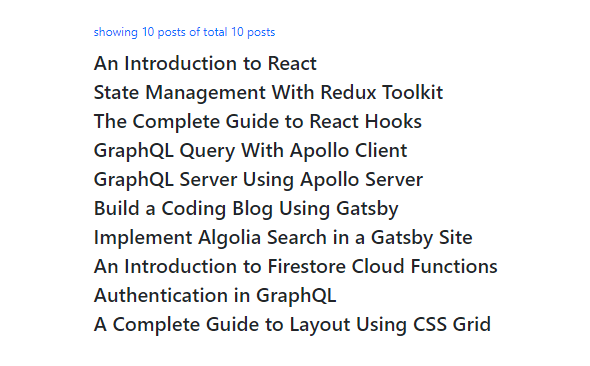
Every blog post belongs to a specific category. It would be great if we could filter through the blog posts that belong to a specific category by clicking on the category names.
To do this, we need to render a list of categories. So, we will create a Categories component where we will map through the posts array in the Redux store and display a list of categories. Note that every blog post has a key called category.
Inside the src folder, create a file called Categories.js.
import React from "react";
import { useSelector } from "react-redux";

const Categories = () => {

const { posts } = useSelector((state) => state.blog);

  return (
    <ul className="list-group">
      {posts.map((post) => (
        <li
          key={post.id}
          className="list-group-item"
        >
          {post.category}
        </li>
      ))}
    </ul>
  );
};

export default Categories;
Let’s now render the Categories component in the App component.
Add the highlighted code snippets in App.js.
import React from 'react'
import Posts from './components/Posts'
import Categories from './components/Categories'

const App = () => {
  return (
    <div className="container">
      <div className="row justify-content-center">
        <div className="title col-md-6">
          <Posts />
        </div>
        <div className="category col-md-2">
          <Categories />
        </div>
      </div>
    </div>
  )
}

export default App
Add the following CSS rules in the index.css file.
/* Rest of the code */

.category ul li {
  font-size: 1.2rem;
  cursor: pointer;
}
We have successfully rendered our blog post categories.
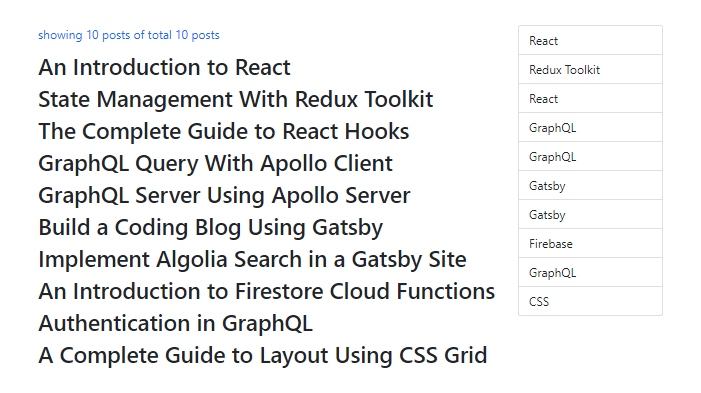
But we have a problem: because multiple blog posts can belong to a single category, we have duplicates in the category list. We can remove the duplicates by using the Set object in JavaScript.
Learn how to remove duplicate values in an array using Set in JavaScript in my blog post here.
Update the Categories.js file as follows:
import React from "react";
import { useSelector } from "react-redux";

const Categories = () => {

const { posts } = useSelector((state) => state.blog);

const categories = [];
posts.map(post => categories.push(post.category))
const categoriesFinal = ["All Categories", ...new Set(categories)];

  return (
    <ul className="list-group">
      {categoriesFinal.map((category) => (
        <li
          key={category}
          className="list-group-item"
        >
          {category}
        </li>
      ))}
    </ul>
  );
};

export default Categories;
On line 10, I have manually added a category called All Categories in the categoriesFinal array. We have added this category so that when we click on it, we display our complete blog post list.
Now our category list only contains unique values.
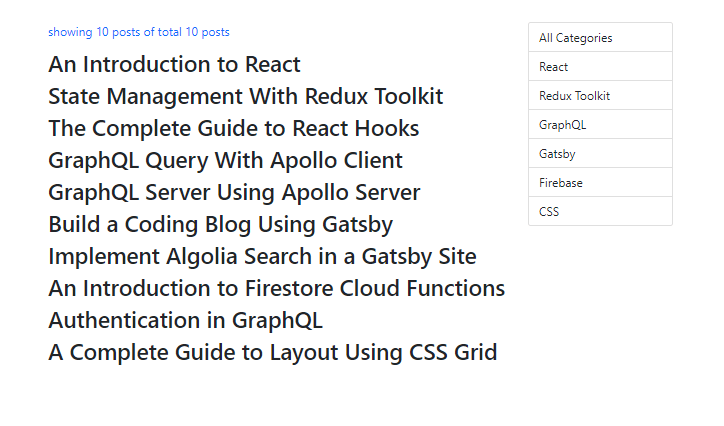
Now that we have rendered our list of blog posts and the categories they belong to, we should be able to filter our blog posts by category names. Clicking on a category name should display only those blog posts that belong to that category.
We will implement the filter feature using the following logic:
-
In the
Categories.jsfile, we will attachonClickevent listeners to our category list items. We will track the click state (whether we have clicked on a category or not) inside a variable calledfilter, which we will store as a local state in theApp.jscomponent using theuseStatehook. -
When we click on any category name except the
All Categoriescategory, we will dispatch an action object to our Redux store. The action object will hold the category name as the value of its key calledpayload. Then, we will create a reducer function namedfilterPosts, which will filter the list of blog posts based on the category name we clicked and save the filtered list of posts as the value of thefilteredPostskey in theinitialStateobject. So, our Redux store will hold both the total list of blog posts and the filtered list of blog posts against two separate keys:postsandfilteredPostsrespectively. -
Next, in the
Posts.jscomponent, we will access thefilteredPostsarray. Whether we display the blog posts by mapping through thepostsarray orfilteredPostsarray will depend on the value of thefiltervariable. -
If
filteris truthy (meaning we have clicked on a category), we will map through thefilteredPostsarray and display the list of posts that belong to the category we clicked. Iffilteris falsy (which is its default value), we will map through thepostsarray and display the list of all blog posts. -
The
filtervariable is where we are storing the state of the click event. So, we will pass thefilterprop to thePosts.jscomponent that we have rendered in theAppcomponent. Then, in thePostscomponent we will access thefilterprop and use its value to conditionally render a list of blog posts. -
We will store reference to the category that we clicked on in a variable called
currentCategory, as local state in theApp.jscomponent. We will passcurrentCategoryas a prop to theCategoriescomponent rendered inside theAppcomponent. Then inside theCategoriescomponent, we will use the value ofcurrentCategoryprop to dynamically add class names to the category list items. When the value ofcurrentCategoryis equal to the category that we clicked on, we add a class namedactive, which results in a blue background of the currently selected category.
Add the highlighted code snippets in the respective files.
import React, { useState } from "react";
import Posts from "./components/Posts";
import Categories from "./components/Categories";
import { useDispatch } from "react-redux";
import { filterPosts } from "./components/blog-state";

const App = () => {
  const [filter, setFilter] = useState(false);
  const [currentCategory, setCurrentCategory] = useState("");

  const dispatch = useDispatch();

  const categoryChangeHandler = (category) => {
    setCurrentCategory(category);
    if (category === "All Categories") {
      setFilter(false);
    } else {
      dispatch(filterPosts(category));
      setFilter(true);
    }
  };

  return (
    <div className="container">
      <div className="row justify-content-center">
        <div className="title col-md-6">
          <Posts filter={filter} />
        </div>
        <div className="category col-md-2">
          <Categories
            currentCategory={currentCategory}
            categoryChangeHandler={categoryChangeHandler}
          />
        </div>
      </div>
    </div>
  );
};

export default App;import React from "react";
import { useSelector } from "react-redux";
const Posts = ({ filter }) => {
const { posts } = useSelector((state) => state.blog);
const { filteredPosts } = useSelector((state) => state.blog);
return (
<>
<p>
showing {filter ? filteredPosts.length : posts.length} posts of total{" "}
{posts.length} posts
</p>
<div>
{!filter &&
posts.map((post) => (
<article key={post.id}>
<h2> {post.title}</h2>
</article>
))}
{filter &&
filteredPosts.map((post) => (
<article key={post.id}>
<h2> {post.title}</h2>
</article>
))}
</div>
</>
);
};
export default Posts;import React from "react";
import { useSelector } from "react-redux";
const Categories = ({ currentCategory, categoryChangeHandler }) => {
const { posts } = useSelector((state) => state.blog);
const categories = [];
posts.map((post) => categories.push(post.category));
const categoriesFinal = ["All Categories", ...new Set(categories)];
return (
<ul className="list-group">
{categoriesFinal.map((category) => (
<li
key={category}
className={
category === currentCategory
? "list-group-item active"
: "list-group-item"
}
onClick={() => categoryChangeHandler(category)}
>
{category}
</li>
))}
</ul>
);
};
export default Categories;
import { createSlice } from "@reduxjs/toolkit";

const initialState = {
  posts: [
    { id: 1, title: "An Introduction to React", category: "React" },
    {
      id: 2,
      title: "State Management With Redux Toolkit",
      category: "Redux Toolkit",
    },
    {
      id: 3,
      title: "The Complete Guide to React Hooks",
      category: "React",
    },
    {
      id: 4,
      title: "GraphQL Query With Apollo Client",
      category: "GraphQL",
    },
    {
      id: 5,
      title: "GraphQL Server Using Apollo Server",
      category: "GraphQL",
    },
    {
      id: 6,
      title: "Build a Coding Blog Using Gatsby",
      category: "Gatsby",
    },
    {
      id: 7,
      title: "Implement Algolia Search in a Gatsby Site",
      category: "Gatsby",
    },
    {
      id: 8,
      title: "An Introduction to Firestore Cloud Functions",
      category: "Firebase",
    },
    {
      id: 9,
      title: "Authentication in GraphQL",
      category: "GraphQL",
    },
    {
      id: 10,
      title: "A Complete Guide to Layout Using CSS Grid",
      category: "CSS",
    },
  ],

  filteredPosts: [],
};

export const blogSlice = createSlice({
  name: "blog",
  initialState,
  reducers: {
    filterPosts(state, action) {
      state.filteredPosts = state.posts.filter(
        (post) => post.category === action.payload
      );
    },
  },
});

export const { filterPosts } = blogSlice.actions;

export default blogSlice.reducer;
Now, if we click on a category, we display only the blog posts that belong to that category. And when we click on All Categories, we change the value of the filter variable to false and render a list of all blog posts.
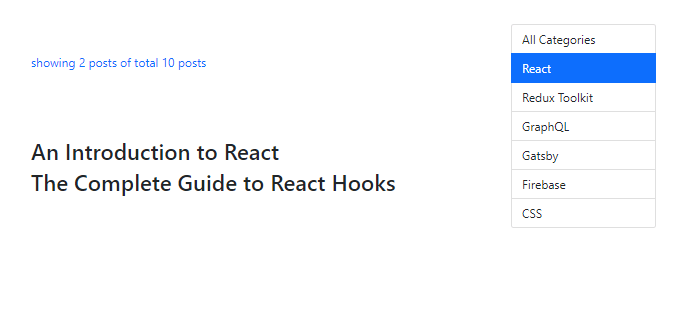
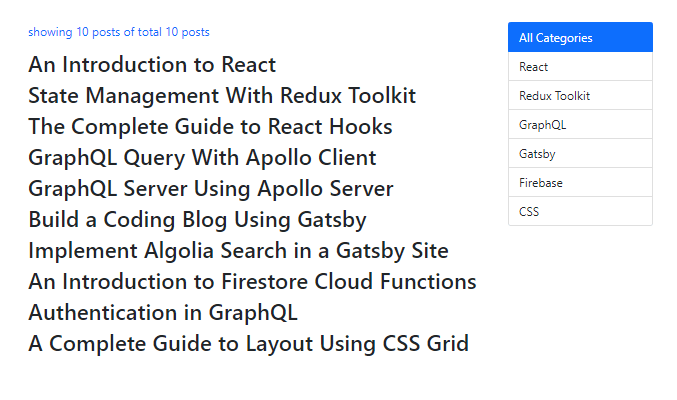
Our implementation of the filter feature is complete.
In part-2, we will implement the search functionality.