Set up a TypeScript Project in Visual Studio Code
By Hemanta Sundaray on 2021-09-16
Learn how the TypeScript compiler works in my blog post here.
First, make sure that the TypeScript compiler (tsc) is globally installed in your system. If not, then install tsc globally (with the -g option) by running the following command in your terminal window:
npm install -g typescriptCheck your tsc version using the following command:
tsc -vNext, create a folder called learn_typescript on your desktop and open it in Visual Studio Code.
tsconfig.json
Every TypeScript project should include a file called tsconfig.json in the root directory. This tsconfig.json is where we preconfigure the process of compilation. We define things like which files should be compiled, which directory to compile them to, which version of JavaScript to emit etc.
Create a tsconfig.json file in the root directory and include the following code sample:
{
  "compilerOptions": {
    "baseUrl": "src",
    "outDir": "./dist",
    "noEmitOnError": true,
    "lib": ["dom", "es2015"],
    "target": "ES2015",
    "watch": true
  }
}
Let’s briefly go over some of these options and understand what they mean.
baseUrl: The folder tsc looks into to find the TypeScript files.outDir: The folder in which tsc should put the generated.jsfiles.noEmitOnError: If any of the files have compilation errors, don’t generate JavaScript files.lib: Which APIs should tsc assume exist in the environment we will be running our code in.target: The JavaScript version tsc should compile our code to.watch: The compiler will watch our TypeScript files and when they change, TypeScript will recompoile them.
The compiler would read all the options from tsconfig.json.
src folder
Next,create a src folder, and inside, create a file named index.ts.
Include the following code snippet in index.ts:
function add(a: number, b: number) {
  return a + b
}
We have a simple function named add() that takes in two parameters and returns their sum. Note that we have annotated the types of both the parameters. This means that while calling the add() function, we can only pass arguments that are of number type.
Let's pass in one of the parameters as a string.
console.log(add(10, "ten"))
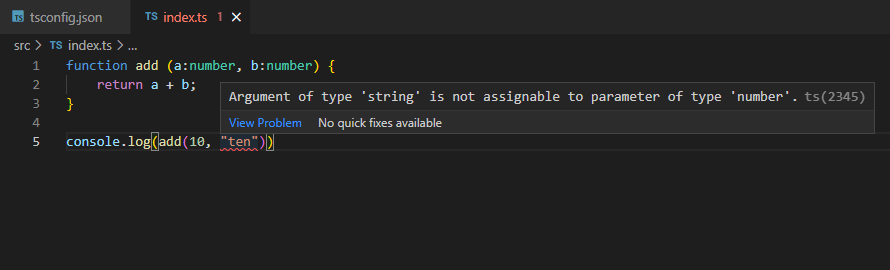
TypeScript shows a squiggly red line under ten. When we hover the mouse over the red line, we will see a prompt explaining the error.
This error is caught even before we compile our code with the TypeScript compiler. It’s great that the error is caught before runtime.
Let’s rectify the error:
function add(a: number, b: number) {
  return a + b
}

console.log(add(10, 10))
dist folder
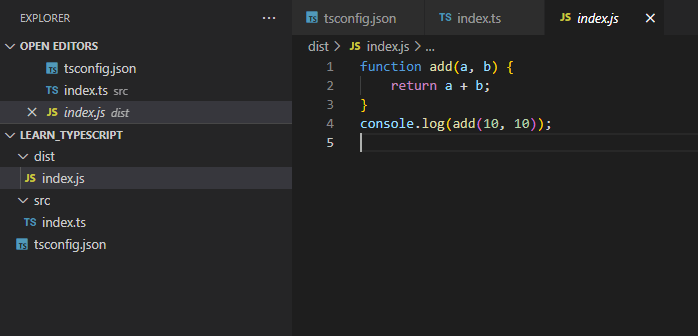
Next, in the root directory, create a folder called dist. (Remember that in the tsconfig.json file, we have mentioned that the TypeScript compiler would compile our code to the dist folder.)
In the terminal window, go to the directory where tsconfig.json file is located and run the following command:
tscOpen the dist folder and you will see that we have a JavaScript file called index.js that contains our JavaScript code.