Selecting & Adding Columns to a DataFrame in Pandas
By Hemanta Sundaray on 2021-08-06
Selecting a single column
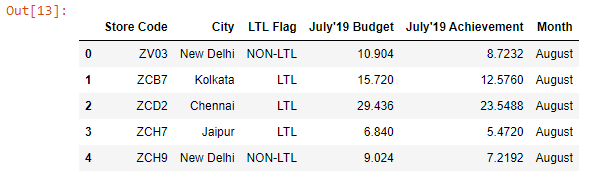
Below, we have read the budget.xlsx file into a DataFrame.
import pandas as pd

budget = pd.read_excel(“budget.xlsx”)
budget.head()
Output:
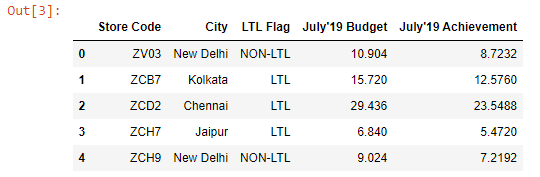
We can select a single column from the budget DataFrame using the bracket syntax:
budget["Store Code"]Output:
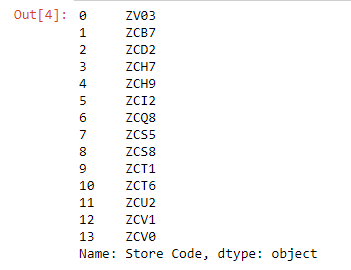
The selected column will be extracted as a Series object.
type(budget["Store Code"])

pandas.core.series.Series
Selecting two or more columns
We can select two or more columns from a DataFrame by passing a Python List inside the square brackets, where the List items are the column names that we want to select.
We can select the Store Code & City columns as shown below:
budget[["Store Code", "City"]].head()Output:
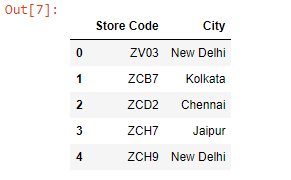
Because we have selected more than one column, the output is a DataFrame.
Changing the order of the columns
If we want the resulting DataFrame to contain the selected columns in a specific order (which is different from the original order), all we need to do is to make sure that the column names that we pass to the Python List are in that specific order.
budget[["City", "Store Code"]].head()Output:
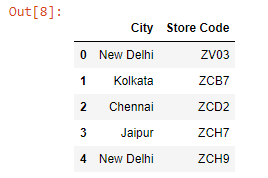
If the two pairs of square brackets are a bit confusing, we can assign the List to a variable and pass that variable inside the square brackets instead.
columns = ["City", "Store Code"]

budget[columns].head()
Adding Columns to a DataFrame
Let’s say we want to add a column named Month to the budget DataFrame. And the column should be populated with the value August.
We can do so using the bracket syntax as shown below:
budget["Month"] = "August"Now, if we preview the budget DataFrame, we can see that we have the Month column added to the DataFrame.
budget.head()Output:
insert()
We can also add columns to a DataFrame using the insert() method.
- The first argument we pass to the
insert()method is the position where we want to insert the new column. - The second argument is the name of the new column that we want to add to the DataFrame.
- And the third argument is the value that we want the new column to be populated with.
budget.insert(3, column = "Month", value="August")The
insert()method permanently modifies the original DataFrame.
Let’s preview the budget DataFrame.
budget.head()Output:
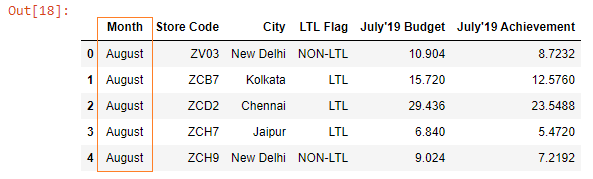
We can see that the Month column has been added at the index position 0 and the entire column has been populated with the value August.