Exploring Worksheets in Excel VBA
By Hemanta Sundaray on 2021-09-13
Add
We can add a new worksheet to the active workbook by using the Add method.
Below, our workbook has three sheets: Sheet1, Sheet2, and Sheet3, with Sheet1 as the active sheet.
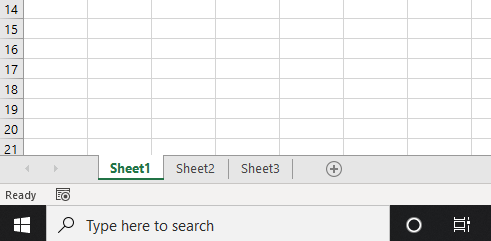
The following procedure will add a new worksheet named Sheet 4, before the original active sheet.
Sub WorksheetDemo()

Worksheets.Add

End Sub
Renaming a worksheet
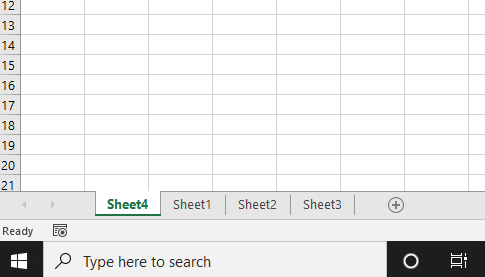
Our workbook has four sheets. We can display the name of the first worksheet using the Name property.
Sub WorksheetDemo()

Debug.Print Worksheets(1).Name

End Sub

' Sheet4
Note that the name of a worksheet is a read-write property. Therefore, we can change the name of the worksheet name as well using the Name property.
The following procedure renames the first worksheet to Data.
Sub WorksheetDemo()

Worksheets(1).Name = "Data"

End Sub
Activate
We can make any of the worksheets the active sheet using the Activate property.
Sub WorksheetDemo()

Worksheets("Sheet2").Activate

End Sub
Delete
We can delete a worksheet using the Delete method.
Sub WorksheetDemo()

Worksheets("Sheet2").Delete

End Sub
Copy
We can copy a worksheet either to a new workbook or to the same workbook using the Copy method.
Sub WorksheetDemo()

Worksheets("Data").Copy

End Sub
Note that copying a worksheet without specifying a destination creates a new workbook that includes the copy.
We can also tell Excel where to put the new copy - before or after the specified worksheet - by using the Before and After arguments respectively.
The following procedure copies the worksheet named Data and places it after the worksheet named Sheet3.
Sub WorksheetDemo()

Worksheets("Data").Copy After:=Sheet3

End Sub