Delete Rows or Columns From a Pandas DataFrame
By Hemanta Sundaray on 2021-08-10
drop()
Let’s read the budget.xlsx file into a DataFrame:
import pandas as pd

budget = pd.read_excel("budget.xlsx")

budget
Output:
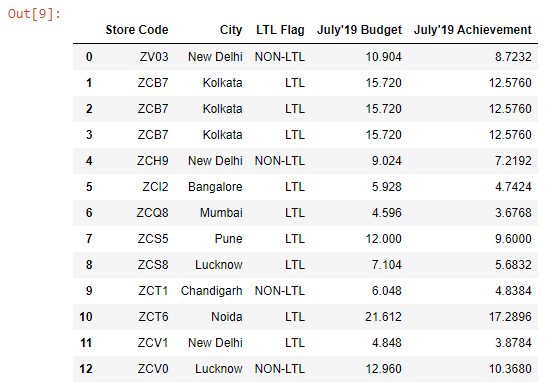
Note that we have a numeric index in our DataFrame.
Let’s say we want to delete the row with index number 0. We can use the drop() method, which by default, deletes rows.
budget.drop(labels=0, inplace=True)

budget
Output:
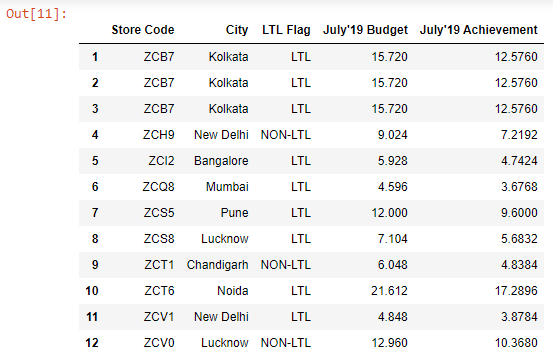
To delete multiple rows, we have to pass a list to the labels parameter.
Let’s delete rows 3 & 5:
budget.drop(labels=[3, 5], inplace=True)

budget
Output:
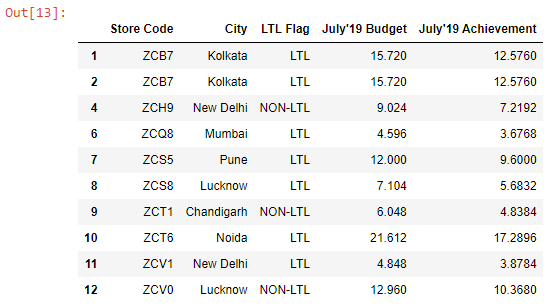
What if we want to delete columns?
All we need to do is to pass axis=1 to the drop() method.
axis=1 represents columns. We can also pass
axis=”columns”.
Let’s delete the City column:
budget.drop(labels="City", axis="columns", inplace=True)

budget
Output:
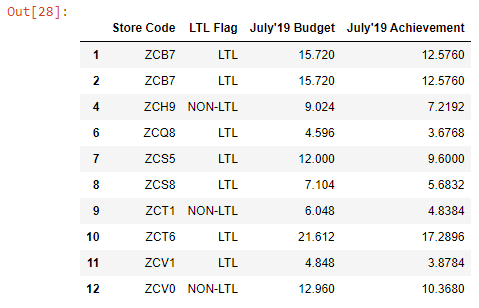
Similarly, we can delete more than one column by passing the column labels to a list, like the way we did for rows.
pop()
For deleting columns, we have access to another method named pop(), which removes the column from the DataFrame and also returns it.
budget.pop("LTL Flag")Output:
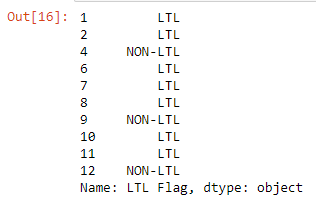
Note that we can’t delete multiple columns with the pop() method.
del
Another way we can delete a column is by using the del keyword:
del budget["July'19 Achievement"]

budget
Output: