Convert Floating Point Numbers to Integers in Pandas
By Hemanta Sundaray on 2021-08-07
Below, we have read the budget.xlsx file to a DataFrame.
budget = pd.read_excel("budget.xlsx")

budget
Output:
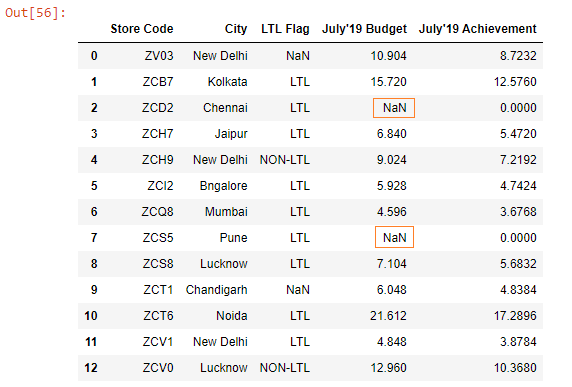
Both July’19 Budget & July’19 Achievement columns contain floating point numbers. Our goal is to convert them from floating point numbers to integers.
Notice that the July’19 Budget column contains missing values. Let’s see what happens if we try to convert the floating point numbers only in the July’19 Budget column to integers using the astype() method.
budget["July'19 Budget"].astype("int")Output:
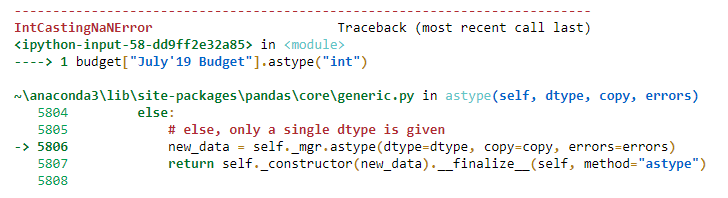
We received an error, because the
astype()method doesn’t work on a Series with null values.
So, first, we will have to fill the null values and then apply the astype() method.
Learn how to fill in null vales in Pandas DataFrame in my blog post here.
budget["July'19 Budget"].fillna(value = 0).astype("int")Output:
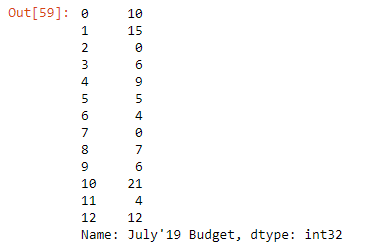
We have successfully converted the floating point numbers to integers. We have a small problem though.
We want the floating point numbers to be converted to the next largest integer. We want 10.904 to be converted to 11, 15.720 to 16 and so on.
We can achieve this using the round() method as shown below:
budget["July'19 Budget"].fillna(value = 0).round().astype("int")Output:
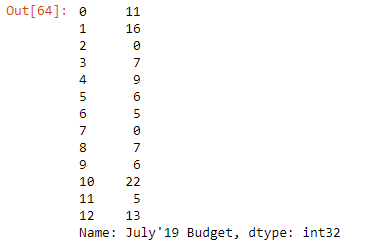
Note that the astype() method does not have an inplace parameter. So, in order to make the change permanent, we will have to assign the July’19 Budget Series to the new Series.
budget["July'19 Budget"] = budget["July'19 Budget"].fillna(value = 0).round().astype("int")

budget
Output:
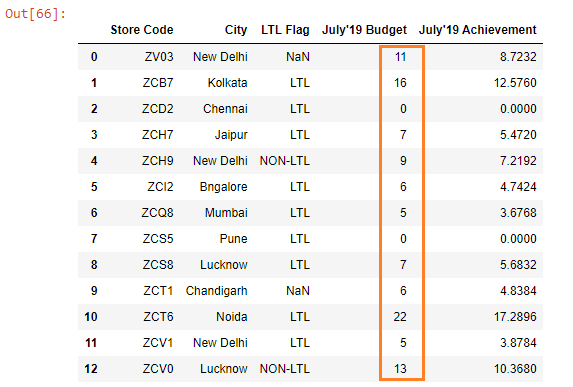
Let’s check the data types:
budget.dtypesOutput:
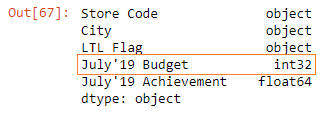
Similarly, we can also change the floating point numbers in the July’19 Achievement column to integers.